
Free for Mac
MemoryBar
Memory use, in one number.
MemoryBar puts a single figure, such as RAM 42%, in your menu bar and keeps it up to date, so you never have to open Activity Monitor just to check how your Mac is doing.
How it works
-
Colour at a glance
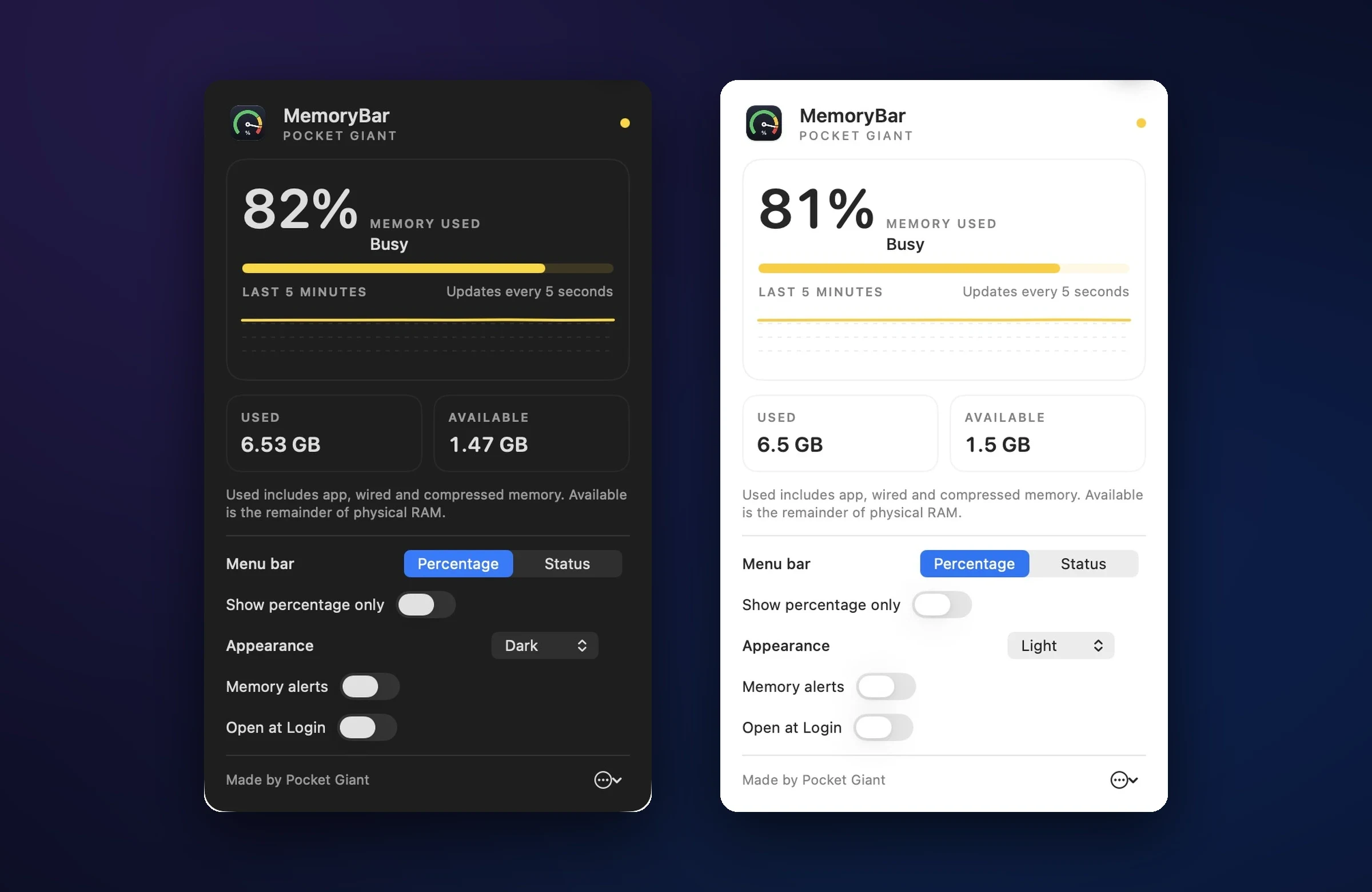
The menu bar number changes from green to yellow, orange and red as physical memory fills.
-
A clearer picture
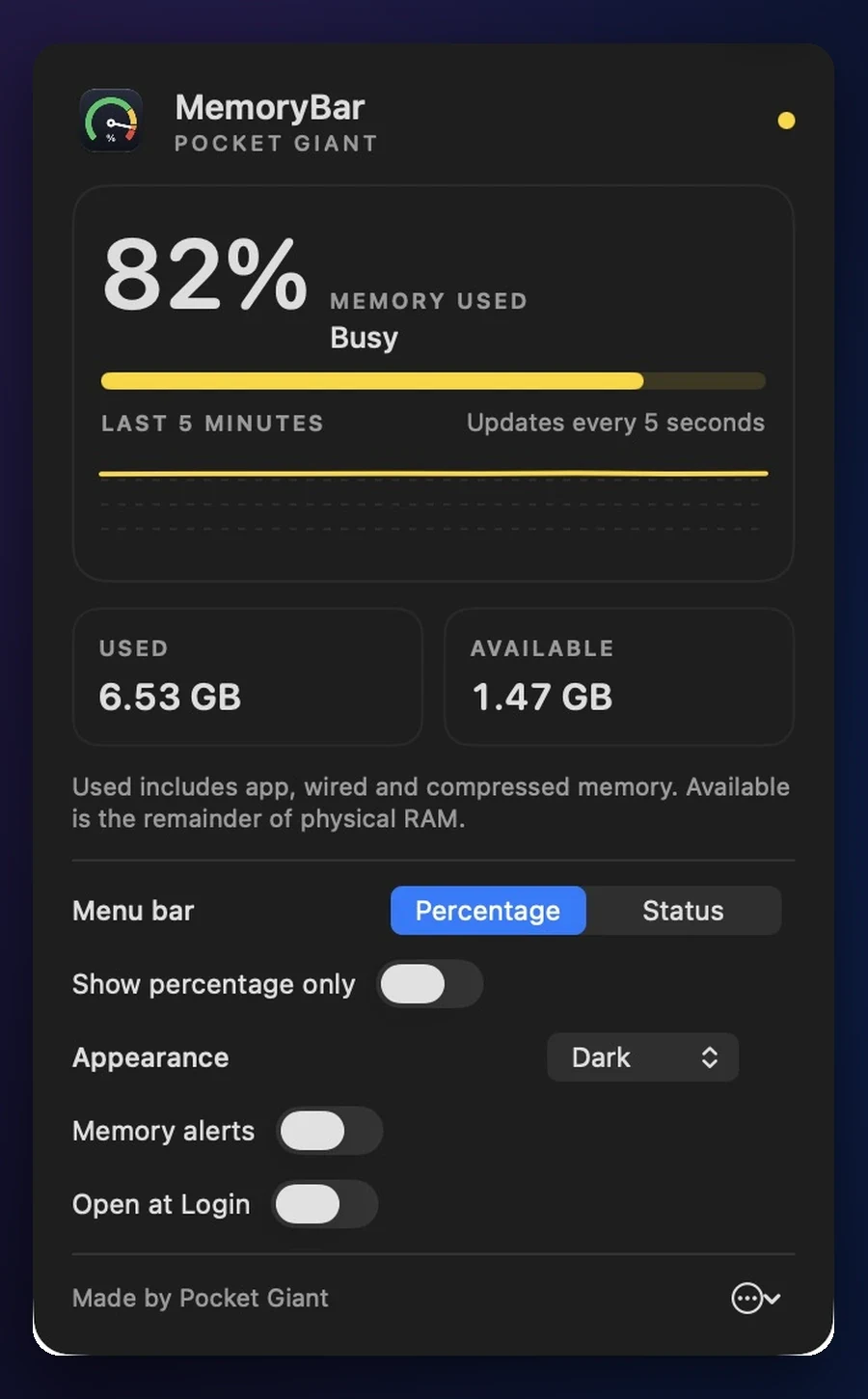
Click to see used and available RAM, a five-minute trend, and a short explanation of the numbers.
-
Your preferred display
Choose Percentage or Status in the menu bar, and set the dashboard to follow your Mac or use Light or Dark appearance.
-
Alerts, if you want them
Opt in to notifications above 90% and 95%. MemoryBar only asks for permission when you enable alerts.
Install
- Download the disk image and open it.
- Drag MemoryBar into Applications.
- Open MemoryBar. It is not yet notarised by Apple, so the first time macOS shows a warning. On macOS 15 or later, choose Open Anyway in System Settings › Privacy & Security. On earlier versions, right-click MemoryBar in Applications and choose Open. You only need to do this once.
Good to know
- Stays out of your way.
- No Dock icon or permanent window. The dashboard opens from the menu bar and closes when you click away.
- Private and lightweight.
- No accounts, analytics, network connections or app-by-app scanning. The five-minute trend stays in memory and disappears when you quit.
Made by Pocket Giant. Read the source on GitHub.