

Free for Mac
AppSweep
A tidy Dock, without thinking about it.
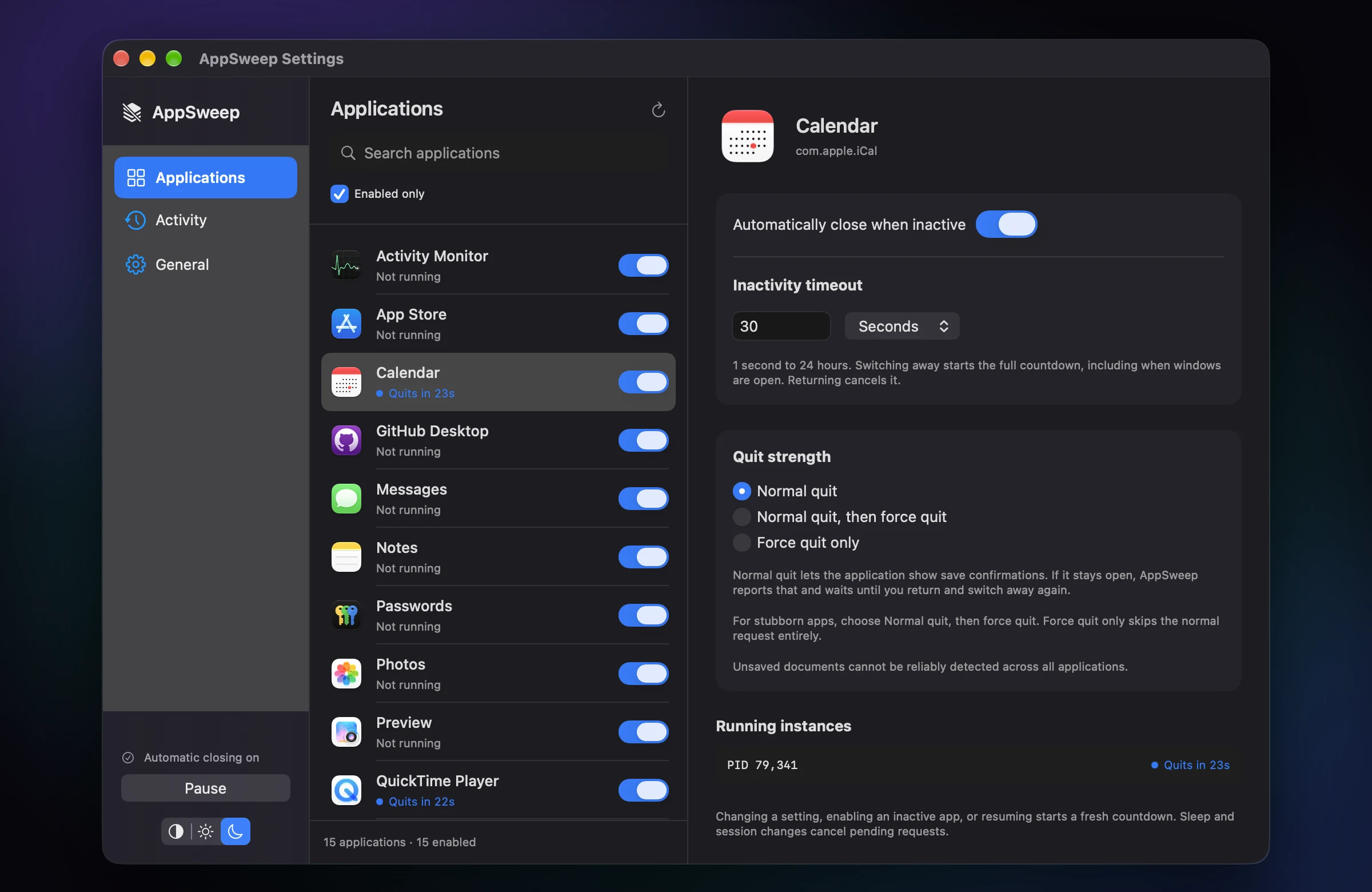
Switch away from an app and AppSweep starts a countdown. If you do not come back in time, the app is closed, so a day of open apps stops piling up in your Dock and using memory in the background.
How it works
-
You choose the apps
Every app starts switched off. Nothing is closed until you turn it on for that app.
-
You set the wait
Switch away and a countdown starts; come back and it is cancelled. Anything from 1 second to 24 hours, per app.
-
You set how firmly it quits
A normal quit lets the app show its save prompt. Force quit options are there for stubborn apps, and each one asks you to confirm first.
-
Pause any time
From the menu bar. Timers also stop while your Mac sleeps.
-
Protected apps
Finder, the Dock and essential parts of macOS are never closed.
-
Light or dark
Follow your Mac, or choose Light or Dark from the settings window or the menu bar.
Install
- Download the disk image and open it.
- Drag AppSweep into Applications.
- Open AppSweep. It is not yet notarised by Apple, so the first time macOS shows a warning. On macOS 15 or later, choose Open Anyway in System Settings › Privacy & Security. On earlier versions, right-click AppSweep in Applications and choose Open. You only need to do this once.
Good to know
- Force quitting can lose unsaved work.
- Use a normal quit for anything with documents.
- Private.
- No accounts, no analytics, no network connections and no special permissions. Your settings stay on your Mac.
- Pinned Dock icons stay.
- Quitting removes the Dock icon only for apps that are not pinned.
Made by Simon Appleton of Pocket Giant. Read the source on GitHub.